Clean reader
Articles, PDFs and pages built with JavaScript, as clean text. Clip quotes, listen with text-to-speech, and pick up where you left off.
 Cyberspace Deck
Spatial web browser · research deck
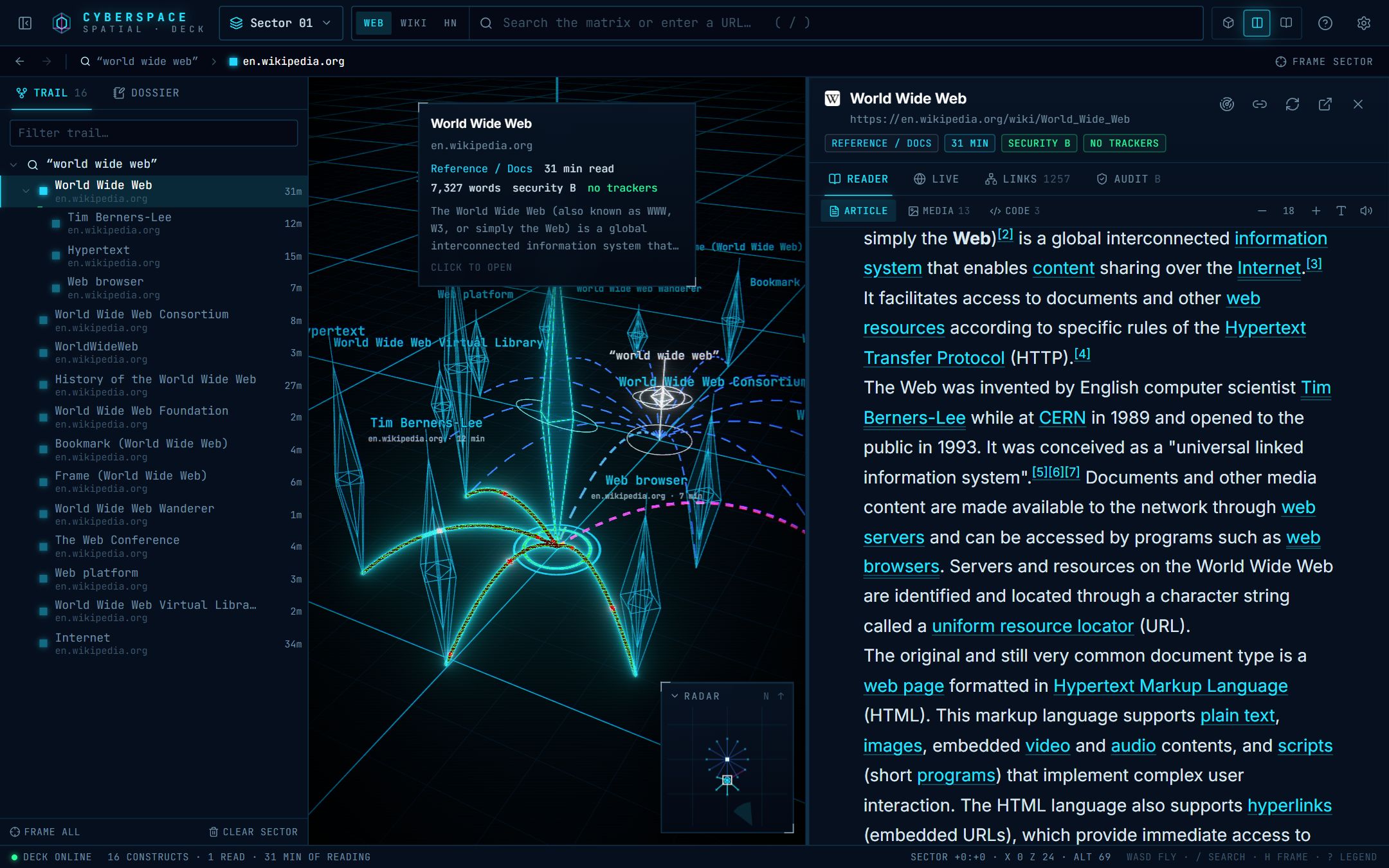
Every page you open becomes a construct on a neon 3D grid, wired by lines of light to the page you came from. Nothing hides in a tab: your whole research trail stays in view.
Free · Windows, macOS and Linux · No account, no tracking
Read the map
It's a practical tool, not a game. Every shape and color tells you something real about a page before you open it.
How long it takes to read. A one-minute stub is a bunker, a 30-minute deep-dive a skyscraper.
What kind of page it is: crystal spires for reference and docs, monoliths for news, stacked cubes for code.
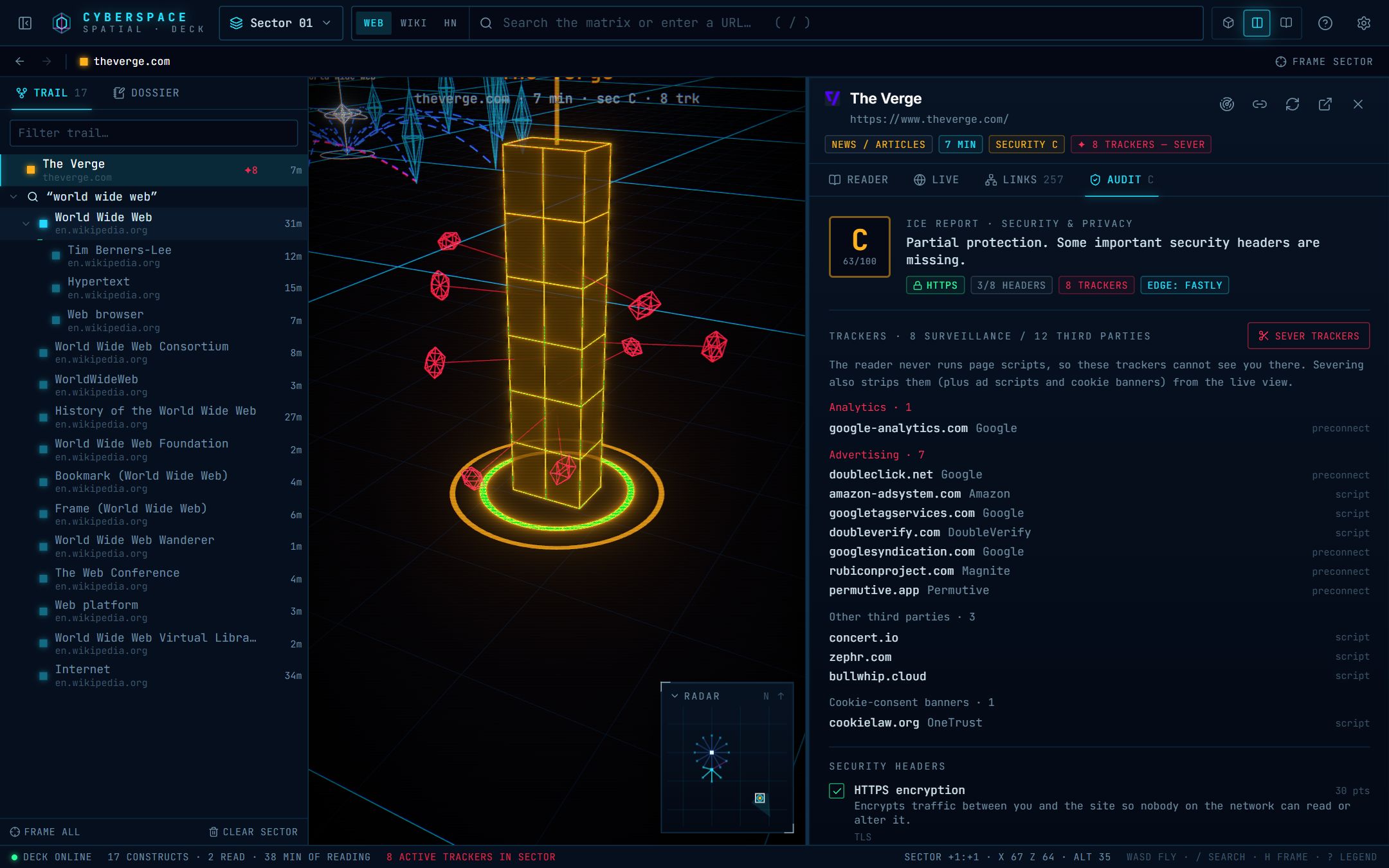
Third-party trackers on the page, by company. Sever them with one click.
Strong security headers. Two rings for an A grade, one for a B.
Solid beams are links you followed. Dashed arcs are search results and pages that link to each other.
Pages the deck found and scanned for you, but that you haven't opened yet.
Features
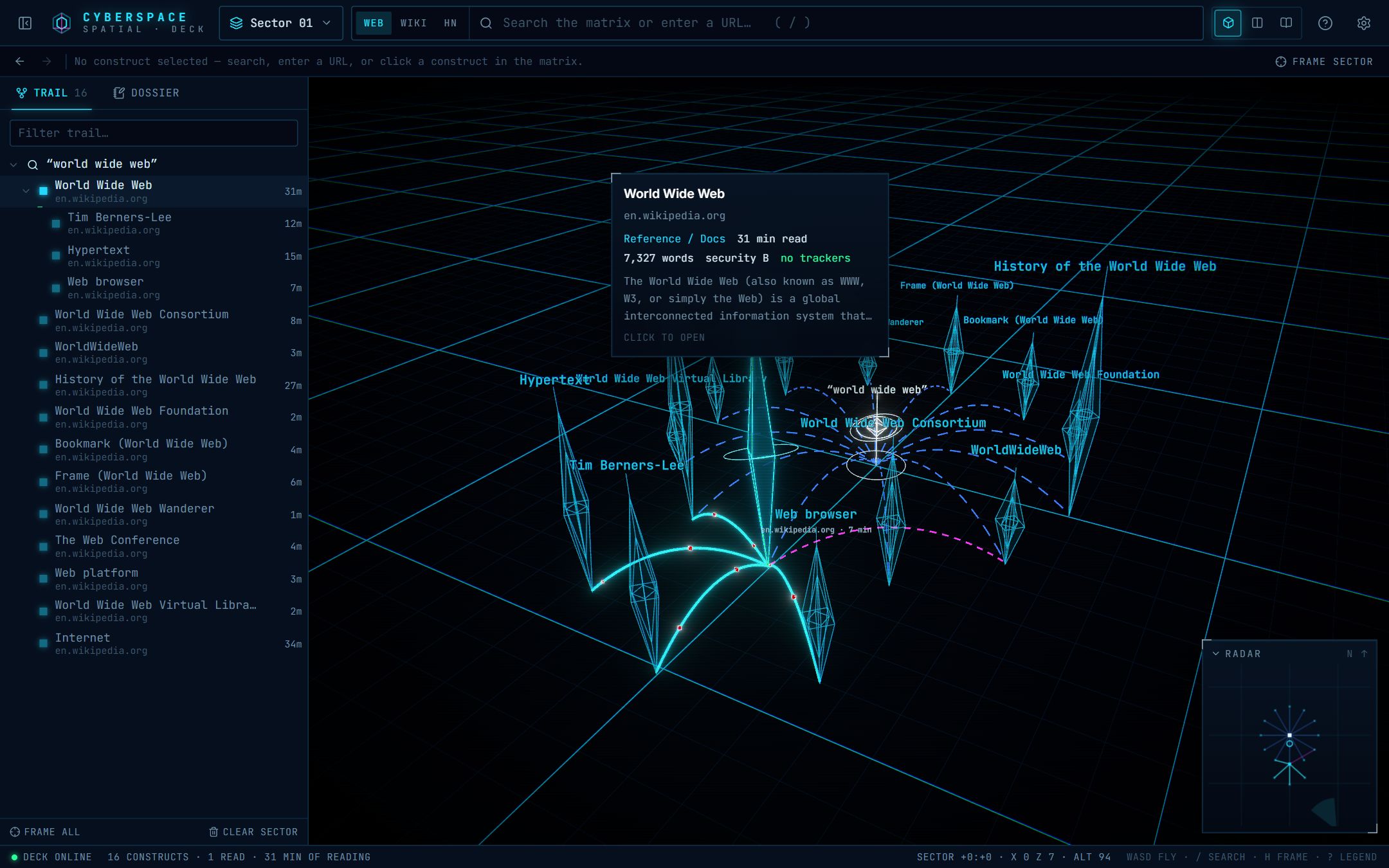
Articles, PDFs and pages built with JavaScript, as clean text. Clip quotes, listen with text-to-speech, and pick up where you left off.
The Live tab is a real Chromium tab: every site works and you stay signed in, with a tracker blocker built in.
A security grade, every tracker by company, the TLS certificate and DNS records, explained in plain English.
Your history as a tree, plus notes and clippings you can export as Markdown (ready for Obsidian) or JSON.
Pages you open are saved, so they reopen instantly and stay readable without a connection.
No account, no API keys, no telemetry. Your sectors stay on your computer.
Download
No account, no API key, nothing to configure.
The installer updates itself. It isn't code-signed yet, so if Windows says “Windows protected your PC”, choose More info → Run anyway.
It isn't notarized by Apple yet, so the first time, open System Settings → Privacy & Security and click Open Anyway.
The AppImage updates itself. If it won't start on Ubuntu 24.04 or newer, use the .deb.
Every version and its release notes are on GitHub.